Set it up once. Then just train.
9 short steps, most with a film of it being done on a real phone in a real gym. Watch the one you need, or go from the top.
Set up
A few minutes, once. You come out with a plan for your first week.
Step 01
Answer a few questions
Create an account and the app asks what it needs to plan around: your weight and where you want it, how many days you can train, what equipment you have, and anything it should work around.
- 1Tap “Start for free” and confirm your email.
- 2Answer each screen. There is a count at the top, so you can see how far is left.
- 3Read the plan it builds, change anything that is wrong, and start week one.
Step 02
Find your way around
Home is where everything starts. One row for each thing you can do, with the week’s numbers on the tiles above them. Add Vytality to your home screen and it opens like any other app.
- 1On iPhone: Share, then “Add to Home Screen”. On Android, accept the install prompt.
- 2Open it from the icon and sign in.
- 3From Home, every row is one tap: “Start a workout”, “Log cardio”, “Log a meal”, “Track progress”.
Your week
Three goals a week: workouts, cardio minutes and food. Any day, any order. Miss a day and the rest of the week re-plans around it.
Step 03
Start a workout
You never have to decide what to do. Pick the day, say how long you have, and the coach writes the session around your equipment and what you have already trained this week.
- 1Tap “Start a workout”.
- 2Pick the day. Each one says what it trains, and any order is fine.
- 3Choose “Full workout”, or the shorter one if you are pressed for time.
Step 04
Log your sets
Do the set, then tick it. The weight and reps from last time are already filled in, so most sets are one tap. Every movement has a demonstration if you are not sure of it.
- 1Do the set, then tap its tick.
- 2Tap the weight or the reps to change them if today was different.
- 3When you are done, tap “Finish workout” and say how it felt.
Step 05
Swap an exercise
Rack taken, or a movement that does not suit today? Swap it for one that trains the same thing. The week counts it the same.
- 1Tap “swap” on any movement you have not started.
- 2Tap again to see the next option. It cycles back round.
- 3Log it like any other.
Step 06
Log your cardio
Cardio is minutes across the week, not a schedule. A walk counts. Three short sessions or one long one get you to the same place.
- 1Tap “Log cardio”.
- 2Pick how long, then what kind.
- 3Tap the button to log it. The week’s minutes move straight away.
Step 07
Log what you eat
Photograph the plate and the coach estimates the protein and calories. Add anything a picture cannot show, like the portion or what it was cooked in. Already eaten? Describe it instead.
- 1Tap “Log a meal”.
- 2Tap “Photograph what you are eating”, or “Describe what you ate”.
- 3Check the estimate, then tap “Add to today”.
Go further
Optional, and worth a look once the week is ticking over.
Step 08
Join the board
Ranks puts your week beside everybody else’s. You are scored against your own goals, not on how much you lift, so somebody on two sessions a week can top somebody on five. Other people see the name you pick and four percentages. Nothing else.
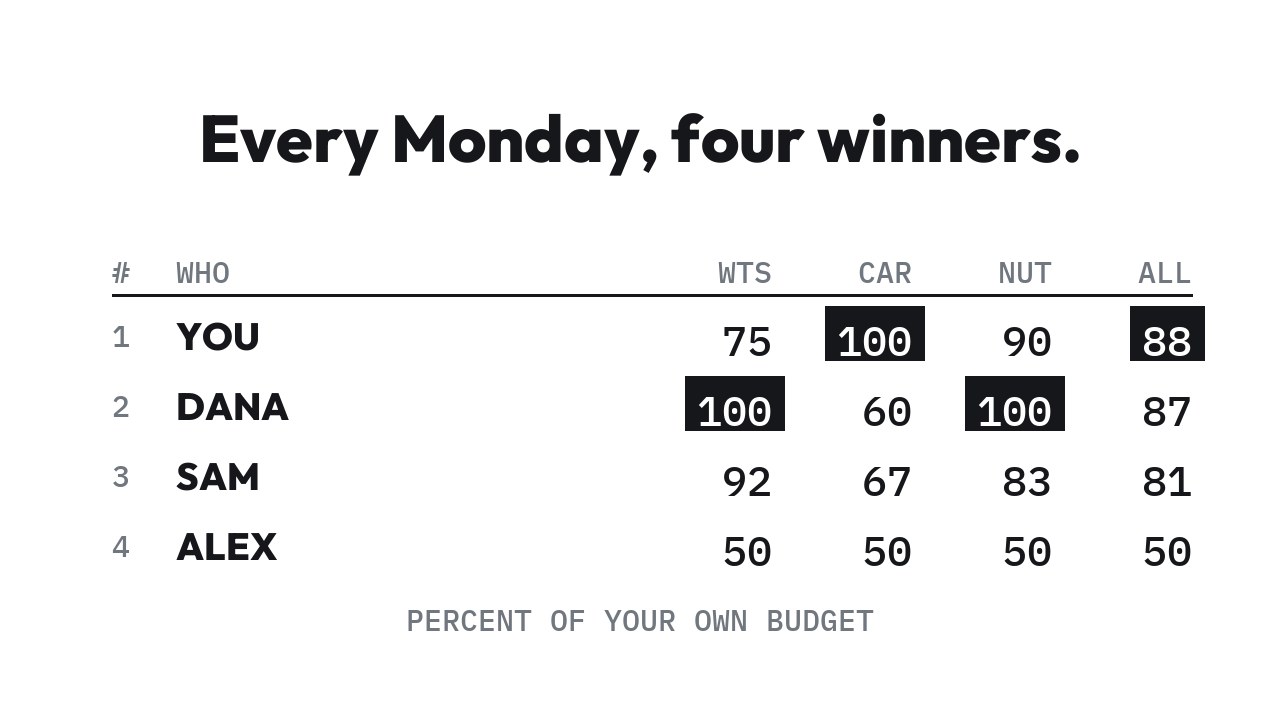
- 1Open the Ranks tab.
- 2Pick a name you are happy for other people to see.
- 3Tap “Join the board”.
Step 09
Send it to Strava
Connect Strava and a finished workout or cardio session appears in your feed by itself: what it was, how long it took, how many exercises and sets. No weights and no reps.
- 1Open your profile and tap “Strava”.
- 2Tap “Connect with Strava” and approve it on Strava’s page.
- 3Finish a workout. It posts by itself.
That is all of it.
It is free and there is no card to add. The FAQ answers the rest.